

Changelog
New features, improvements, and fixes across OmniSocials, newest first. Updated with every release.
October 25, 2026
Answer DMs on X automatically
Your automations now work on X. When someone sends your X account a DM, OmniSocials answers with your message within a few seconds, once per person. Answer every first message, or only the messages with a keyword such as PRICES.
Jane Doe sends a DM to an X account and the automatic answer arrives a moment later. Open Automations and choose Answer DMs automatically, the automation for X. It runs while X DMs are on, and you can turn them on from the editor. Each new DM uses 1 credit and each answer 2 credits, the same as in the Social Inbox.
Inside X's rules
X allows automatic DMs only to people who wrote to you first, and every person must be able to stop them. So OmniSocials answers DMs only, never replies or mentions, and every automatic answer ends with "Reply STOP to stop automatic messages." A person who answers STOP gets no automatic message from your account again.
To use a keyword on X, ask for it in your post: "DM us GUIDE and we send you the guide."
Messages in encrypted X Chat conversations do not reach apps, so the automation cannot answer those.
Improved
- No answers lost at the send limit - when an automation reaches the hourly send limit of Instagram, Facebook or X, the next answers wait and go out when there is room again, within the hour. Before, they were skipped.
- X DMs turn back on after a top-up - when your credits run out, X DMs pause. They now turn back on by themselves after a top-up, and while X DMs are on, OmniSocials warns you when fewer than 50 credits are left.
- Automatic answers in the inbox - the Social Inbox marks the X DMs that an automation sent.
- X automations in the API - the public API, the MCP server, the CLI and the SDKs take
xas the channel of an automation.
October 23, 2026
Post to Discord
Discord is now a channel in OmniSocials. Plan and schedule posts for a channel of your Discord server in the same composer and on the same calendar as your other channels.
A post from the OmniSocials composer arrives in a Discord channel with a link button, and the first reactions come in. A Discord post can hold text, up to 10 images, GIFs and videos, a poll or up to five link buttons. The Discord options let you send a post without a notification, hide the link previews, blur the media as a spoiler and give a post its title in a forum channel. Mentions such as @everyone stay quiet unless you turn them on, so a scheduled post never pings your whole server by accident.
Connect it in a minute
Open Channels and pick Discord. Continue with Discord opens Discord's own screen: choose your server and a text channel, and press Authorize. You need the Manage Server permission in that server. You can also paste a webhook URL from Server Settings, Integrations, Webhooks.
Your posts show the name and picture of the webhook. Change them in Discord.
Reactions and polls
The post page shows the reactions per emoji and the votes of a poll. Discord does not share view counts with apps, so views show N/A.
Comment to DM on Facebook
Your comment-to-DM automations now work on your Facebook Page too. When someone comments a keyword under a Page post, or sends it to your Page in Messenger, OmniSocials answers with a message in Messenger, once per person, with an optional public reply under the comment.
Jane Doe comments GUIDE under a Facebook Page post, the Page replies, and the guide arrives in Messenger. In a new automation, pick Facebook, Instagram or both: one setup runs on each channel. Meta's rules are the same as on Instagram: one private reply per comment, within 7 days of the comment.
Improved
- More when you hover - rest the mouse on a channel icon, a status, a badge, a count or a date to see the account behind it, why a post failed, who asked for changes, what waits in your other workspaces and more, without opening another page.
- Delete from Discord - choose Delete on a post you sent to Discord to remove the message from your channel. There is no time limit.
- Repost to Discord - a repost automation can now copy posts from Instagram, TikTok, Facebook and the other sources to your Discord channel.
- Discord and Facebook in the API - the public API, the MCP server, the CLI and the SDKs take the
discordchannel and comment-to-DM automations on a Facebook Page. See the Discord guide.
October 20, 2026
Every post in Analytics
Analytics now shows the posts you make outside OmniSocials too: the reel you post in the Instagram app, the TikTok you film on the spot, the video you upload to YouTube yourself. They sit in the post list next to the posts you send through OmniSocials, and they count in your cards, your channels and your reports.
A Reel posted in the Instagram app arrives in the Analytics post list with a small phone mark, and the switch turns the posts made outside OmniSocials off. A small phone mark next to the date shows which posts were made outside OmniSocials. Click one to see its numbers over time, or open it on the platform.
On your calendar too
Your calendar shows them as well, on the day and at the time they went live, between the posts you plan in OmniSocials. They are quiet grey cards with the same phone mark, so the posts you plan stay the ones that stand out. Click one to see its numbers over time.
A Reel posted in the Instagram app shows up on today in the calendar as a grey card with a phone mark, and the switch next to Week and Month turns the posts made outside OmniSocials off and on.
One switch
Turn off Include posts made outside OmniSocials above the post list to see only your OmniSocials posts again. The switch works for the whole page and for your reports. The same switch sits on your calendar next to Week and Month: turn it off in one place and it is off in both.
Which channels
Instagram, Facebook, TikTok, YouTube, Threads, Pinterest, Bluesky and Mastodon. OmniSocials reads the last 90 days of each account when it starts and keeps the numbers fresh for 90 days after a post goes live. A new post shows up within a few hours, on YouTube within a day. LinkedIn does not let apps read the posts on a personal profile, and Telegram does not let bots read a channel's history, so those two stay out.
Your posts as a card in Claude
When you make, change or publish a post with Claude, the post now shows up in the chat as a card. You see it the way each platform will show it, with the photo, the caption and the account, so you no longer have to open OmniSocials to check it.
In a chat with Claude, the OmniSocials card shows a scheduled post, and a click on LinkedIn and then X switches the preview. The card lists every channel of the post with its state: the planned time, Posting, Posted with a link to the live post, or Failed with the reason. Click a channel to see its preview. Show all channels puts every channel side by side, and Open in OmniSocials takes you to the post in the app.
Follow a post as it goes live
Ask Claude to post something now, and the card follows the post until every channel is done. Then the card shows a button that opens the live post.
Where the card works
The card works in Claude on the web, in the desktop app and in the phone apps, with the OmniSocials connector. The first time, Claude asks whether it may show the card. Not connected yet? Follow the Claude guide.
Improved
- A link to the post in every answer - when an AI agent publishes, retries, approves or rejects a post, its answer now ends with an "Open in OmniSocials" link, as it already did after creating a post. Tools without cards, such as Claude Code, show this link.
October 17, 2026
Post to Telegram
Telegram is now a channel in OmniSocials. Plan and schedule posts for your Telegram channel or group in the same composer and on the same calendar as your other channels.
A post from the OmniSocials composer arrives in a Telegram channel with a link button, and the first reactions come in. A Telegram post can hold text, photos, videos, GIFs, files or an album of up to 10 photos and videos. The Telegram options let you send a post without a sound, pin it, stop forwarding, blur the media until someone taps it, put the text above the media, add up to three link buttons and add a first comment. Telegram polls work too: the text of the post is the question.
A long text under media is no problem. Telegram allows 1,024 characters under a photo or video, so OmniSocials sends the media first and the full text as a reply under it.
Connect it in Telegram
Open Channels and pick Telegram. The OmniSocials bot opens in Telegram. Press Start, tap Choose a channel or Choose a group and pick your chat. Telegram adds the bot as an admin that can post. OmniSocials checks that you are an admin of that chat, so nobody can connect a chat that is not theirs.
Reactions and polls
The post page shows the reactions per emoji and the votes of a poll. Telegram does not share view counts with apps, so views show N/A. The channel list shows your subscribers.
Improved
- Repost to Telegram - a repost automation can now copy posts from Instagram, TikTok, Facebook and the other sources to your Telegram channel or group.
- Telegram in the API - the public API, the MCP server, the CLI and the SDKs take the
telegramchannel and its options. See the Telegram guide. - N/A for numbers a channel does not report - the post page and the Posts list show N/A instead of 0 when no channel of a post reports a number, such as views on Bluesky, Mastodon and Telegram. When some channels of a post report a number and others do not, a line under the numbers says which channel is left out.
- A fairer engagement rate - on the post page, the engagement rate of a post on several channels now counts only the channels that report views. Before, the likes on Bluesky, Mastodon or Telegram counted without their views and made the rate too high.
October 16, 2026
Dark mode
OmniSocials now has a dark theme. By default it follows your computer or phone: a dark system gives you a dark OmniSocials, a light one keeps what you had. To choose for yourself, open your account menu at the bottom of the sidebar and pick System, Light or Dark under Theme. The same switch sits at the bottom of Settings.
Every page, dialog and menu was redrawn for the dark theme, including the calendar, the composer, the inbox, analytics and the post previews. A preview of a post copies the platform's own dark look, so an Instagram or X post looks the way it will on the app. Your link-in-bio page keeps its own colours in both themes, and the editor now shows it on your page's background, as visitors see it.
Review a post and fix it on one card
Every post in Approvals is now one card. The text sits on the left in a field you can type in, the comments sit under it, and the post preview sits on the right with the date it publishes. At the bottom you pick one of three: Request changes sends it back with a note, Edit yourself opens the post in the editor, and Approve approves it.
When you change the text on the card, the buttons turn into Undo, Save and Save and approve. When several channels share the text, the card says which other channels change with it, and the "Instagram only" switch gives that one channel its own text.
The line above the buttons shows where the post is in the review, for example "Waiting for you, step 1 of 2". Click it to see every step and who approved. The same steps show in the list view, and under the approval workflow when you schedule a post, where you can also pick No approval.
When you open a post from Approvals in the editor, a bar at the top shows whose post it is and the step of the review, with Request changes and Approve. After your decision you go back to Approvals.
Drag drafts and files onto the calendar
At the bottom of the calendar, a Drafts pill shows how many drafts wait for a date. Open it and drag a draft onto a day: the schedule window opens on that day, so you check the time and schedule it as usual. Drafts from the Drafts list in the sidebar drop the same way.
Drop pictures or a video from your computer on a day to start a new post for that day. One video starts a Reel.
Schedule a planned draft in one click
A draft with a date now shows that date on its button, for example "Schedule for Wed 9 Dec, 10:00". One click schedules it at that time. The arrow next to it lets you change the date and time, or remove the date. When the date has passed, when the post needs approval or when TikTok is one of the channels, the button opens the schedule window first.
Improved
- Small grey text is easier to read - dates, ages and helper lines use a darker grey in the light theme and a lighter one in the dark theme, so they meet the readability line on every surface.
- Blue links read better on white - the blue of links and text labels is a step darker in the light theme; buttons keep the OmniSocials blue.
- The browser bar on a phone matches the app - in the dark theme the status and address area of Safari and Chrome turns dark with the page.
- Settings in one click - the gear next to your name at the bottom of the sidebar opens Settings. Your account menu, with the theme and Log out, opens above your name.
- Every menu looks the same - dropdowns and right-click menus now share one spacing and one corner shape, and a row that deletes or removes something is always red.
Fixed
- A post sent back for changes skipped the review the second time - when you edited a sent-back post and sent it again, it was scheduled without a new approval. It now goes back to the reviewers.
- A post left Approvals after the first step - in a review with two steps, a post approved at step 1 disappeared from the Approvals page until you reloaded it. It now stays and moves on to step 2.
October 14, 2026
Fixed
- Credit purchases had no invoice - a top-up of credits for X link posts was charged to your card, but no invoice was made for it, and the Invoices tab listed your plan only. Every top-up and auto-refill is now an invoice on your organisation, listed under Settings, Organisation, Billing, Invoices, with a PDF to download. The confirmation email links to the invoice.
October 12, 2026
Polls on X, Threads and Mastodon
Write the question as the post text, then open Poll in the options bar of X, Threads or Mastodon and add 2 to 4 answers. On X you choose how long the poll runs, from an hour to 7 days. On Mastodon the choices follow your server, and you can allow several answers per person and hide the totals until the poll ends. Threads closes a poll 24 hours after it is published. The preview shows the poll the way each platform draws it.
A poll replaces the media on that channel: none of the three platforms takes both, so turning a poll on takes the pictures off that channel and leaves the other channels as they are. On a thread the poll goes on the first post. LinkedIn polls work as before.
The results arrive with the post statistics: the post page shows a Poll results card with the share of each answer and the time left.
Through the API, pass poll under x, threads or mastodon on create and update. The Claude and ChatGPT connectors, the CLI and the 8 SDKs take the same field.
Fixed
- An Instagram post that went live was reported as failed - Instagram sometimes answers a publish with "Action blocked" after the post is already on the account. OmniSocials recorded the post as failed, and a retry published it a second time. It now checks your account before it reports a failure: when the post is there, it is kept with its link, and nothing is published twice.
- A false "Reconnect Instagram" - the same answer, and Instagram's rate limits, flagged the connection as expired and sent the reconnect email, although the connection worked. One workspace reconnected Instagram 14 times in five days. A rate limit no longer asks for a reconnect.
- A free month offered while a payment was still open - when the first payment after a trial failed and you then accepted a free month, the free month applied to the month after, while the open payment was collected a few days later. The offer is no longer shown while a payment is open.
Improved
- A caption too long for the destination of a repost automation - until now a caption over the limit was left out without a word up front, or cut without asking. The automation now asks you once: post it as a thread (X, Bluesky, Mastodon, Threads), cut it at a word, or skip the post. The limit follows your account, such as 25,000 characters on X Premium or your Mastodon server's own limit. The Skipped tab shows how many posts were left out for this reason and applies your choice to all of them with one click. You find the setting in the setup of the automation.
- A post the source shared no file for - a reel with licensed music comes without its video, so the automation cannot copy it. The Skipped tab now has "Post it yourself" on such a post: it opens the editor with the caption and every channel that skipped the post filled in, and you add the video.
- The "Next" date of a repost automation - with a long line of posts the date showed the day of the newest import, months away, instead of the next post. It now shows the real next post.
October 11, 2026
A roadmap update: comment to DM for Instagram is live for every workspace with an Instagram account connected.
Comment to DM for Instagram is live
Someone comments GUIDE under a post, gets a public reply and the guide in a DM, and the automation counts one more DM sent. Ask people to comment a keyword under your post or reel, for example GUIDE. Each person who does gets your message as a private DM, with your link, offer or guide. The DM arrives a few seconds after the comment, and each person gets it once.
You can also answer in public under the comment ("Sent you a DM! 📩"). Add a few variations and OmniSocials rotates them, so your replies do not all look the same.
Three ways to start the DM
One automation can listen to all three at the same time:
- A comment with the keyword: on one post, on the next post you publish, or on every post of the account. A post you published outside OmniSocials works too.
- A DM with the keyword.
- A reply to your story with the keyword.
The keyword matches as a whole word by default, in capitals or not, so "guide", "GUIDE" and "the guide please" all count.
Set it up in a minute
Open Automations, choose New automation and then Send a lead magnet. Pick the trigger, type the keyword, write the DM and turn it on. The phone next to the steps shows what people will see, and the bottom of the editor tells you what is still missing.
You can also turn on comment to DM in the Instagram options when you create a post. The automation starts the moment the post is live.
Every automation has an activity page: each person who matched, what they wrote, and what happened. DM sent, skipped with the reason, or failed with Instagram's message. You can also stop an automation after a number of DMs or on a date.
Or ask your AI assistant
With the OmniSocials connector in Claude or ChatGPT, ask for it in plain words: "Send everyone who comments GUIDE on my last reel the link to my guide". The assistant sets up the automation after you confirm. Developers use the new /automations endpoints of the API, with the Automations switch on when they create the API key.
Instagram's rules
Instagram allows one private reply per comment, within 7 days of the comment. A second message is possible only after the person answers you. OmniSocials sends up to 180 DMs an hour per workspace.
What's next on the roadmap
Coming soon
- OmniSocials Ads - create and manage ad campaigns across your connected platforms, next to your organic posts.
- Embed OmniSocials in your own product - build social media posting into your own software for your own users, with OmniSocials behind the scenes.
- Analytics for posts made outside OmniSocials - the numbers of every post on your connected accounts, also the ones you publish directly on a platform.
- New integrations - Telegram, Discord, Tumblr, WordPress, Whop, Slack, and X Articles.
Is there something you want us to build? Send an email to [email protected].
October 10, 2026
A big update. Most of the app got a new look, and a few things are new. Here is what changed, one part at a time.
One bell for updates from every workspace
The bell gets a red badge with 3, opens, and lists updates from two workspaces. The bell next to the workspace selector collects what needs you, from every workspace you are in: a post that failed, a post that waits for your approval, an approval, a request for changes, a comment or an edit in a review, a channel to reconnect, a teammate who joined, and milestones for your posts and followers.
The red badge counts what is new, and a blue dot marks each update you have not opened yet. Click an update to go there; OmniSocials switches to its workspace first. On the phone, the bell sits in the top bar.
Review posts in a feed and comment on any word
A reviewer selects words in a caption, suggests new ones and approves the post. Approvals is now a feed. Every post that waits for you is a card with its real preview per channel. Approve it, or choose Request changes and write what to change. The tabs are For you, Sent by you, In review, Approved and Sent back, and the list view is one click away.
Select words in a caption to comment on them, or suggest new words that the author applies with one click. On a Reel you comment on a moment in the video, on a Story on a point of a slide. You can also edit a caption in the card itself and choose Save and approve. A post you have decided folds into one line, and the message tells you who reviews next.
Edits during a review keep the approvals: a change to the caption, the first comment or the time keeps every approval given, and the people who approved get a notice. A change to the media or the channels starts the review again from step 1, and the editor asks you first.
Every post option in one bar under the editor
A switch chip turns on, the Location chip opens the panel and a place is picked. The options of each channel are now chips in a bar under the editor. A switch turns on or off in place, a short list opens on its chip, and the rest opens one panel above the bar, on the page of that channel.
After a pick, the panel goes back to the channel page, so you can set several options in a row. The channel icons at the top of the panel switch channel; Done or Escape closes it.
The month view scrolls like a real calendar
The month view scrolls from October into November and the month list shows post counts. The Month view is one long strip of weeks, like the calendar on a Mac. Scroll up or down and the title follows the month at the top. The arrows, Today and the month list jump there. Every past day is grey, and the 1st of a month carries its name.
Click the title ("October 2026") to see every month with the number of posts in it; in Week view the list shows the weeks. A note on the calendar now looks like a paper note, and a notable day colours the top of its day in the colour of its category: holidays orange, shopping days red, awareness days green.
A new Library with folders you can see into
A photo is dropped on the Library and appears under Today, next to the folders. The tabs All, Images, Videos and PDFs show how many files each has. Folders are the first tiles of the grid, with their three newest files on top. Files sit in rows at their own shape, grouped by the day you uploaded them, and open full screen.
Drop files anywhere on the page to upload them, or choose Use in a post to start a post with them. New folder sits at the top of the page, an empty folder offers Move files here, and you can sort by newest, oldest or biggest.
Add media in the editor now shows the same Library, with an In this post column next to it: the files of the post in the order they publish. Drag to change the order, or remove a file with the x. The column shows the limits of your channels, and a picker opened from a channel tab changes only that channel.
See how a post does at a glance
The post page with a card per metric, a chart over time and a line for a channel that did not post. The post page opens with the numbers: a card per metric with a small chart and the change since the last check, one chart over time (all channels or per channel) with a line such as "Threads brought 99.8% of the views", and every channel with its share of the views.
A channel that did not post gets one line with the cause and the next step: Try again, Edit post, Reconnect, open the platform, or Top up. When an automatic retry is planned, the line says at what time. Details shows the full message from the platform.
The statistics also arrive on time now: every 2 hours in the first week of a post. Until now the checks ran up to 8 hours late, and a new post could show zeros for most of a day.
Comments grouped per post in the Inbox
A post with new comments opens in the Inbox, the count in the sidebar goes down and a reply field opens. All comments on a post are one conversation. The row shows who commented ("Daan and 2 others") and how many comments are new. Opening the post marks them all as read, so the count in the sidebar goes down at once.
The filter takes several types and platforms at the same time, Mark as unread puts a conversation back, and Open post now also works for older Instagram comments. A comment that a comment-to-DM automation answered carries a tag. Like, hide, delete and reply work the same way on every platform that allows them.
A new Settings, with Change password
Settings in full screen: a search for password leads to Profile, where Change password opens its dialog. Settings opens over the whole window, with a menu on the left, a search (⌘K or Ctrl+K) and a switch between your organisations. Every page is new and calmer, from Profile (your name can now be changed) to Roles with one switch per permission and Approval workflows written as a sentence.
To change your password, open Profile, then Security, and choose Change password. If you do not remember the current one, the same dialog emails you a reset link. After a change, or a reset by email, only the browser that made the change stays signed in, and you get an email with a button to reset the password right away in case it was not you.
Tall images fit the Instagram feed
A 9:16 photo is moved inside the 4:5 frame and the Instagram preview follows. A 9:16 image in an Instagram post is now cropped to 4:5 around the subject before it publishes, so the post looks the way you see it in the preview and Meta can boost it. Until now Instagram cut it itself, around the centre, and a boost was refused.
Under the Instagram options, Image fit lets you drag the picture to choose what stays, or keep the original. Stories, Reels and your other channels keep the whole image. The API and the AI assistants take media_fit for the same choice.
Improved
- Billing at a glance - the Overview tab shows your plan, its price and your use of workspaces, extra users and credits in one block, with a bar for each. Credits and Invoices have their own tabs. Extra users are added with the card on file, without a new checkout, and the window says what is charged and when.
- Channels in one list - the Channels window has three parts: Needs attention, Connected and Add a channel. Every step of a connection (a Facebook Page, a LinkedIn Page, a YouTube channel or a Google location to pick, a Bluesky handle or a Mastodon server to enter) now happens in that same window. After a sign-in the window opens with the new channel marked Just added. A channel that needs to be reconnected tells you how many planned posts wait for it.
- A clearer workspace menu - each workspace shows its channels as a line of icons, with the ones to reconnect first. One Channels row opens the Channels window. If you are in more than one organisation, a row of organisation tiles switches between them.
- A shorter user menu - the menu under your name has Profile, Settings, Billing (with the days left in a trial), Invite team, What's new, Refer and earn, Resources, Help and Log out.
- A new Reports page - Reports shows complete numbers for the period you pick: totals with a chart, a card per channel, your audience, profile activity, and every post with a link to it on the platform. A number that a platform does not report says so, instead of showing 0.
- Scheduled posts in the editor - a scheduled post shows when it publishes ("Publishes Sat 10 Oct, 22:45") next to Save changes; click the time to pick another one. The arrow on Save changes holds Change date and time, Post now, Turn into draft and Delete.
- Drafts in the sidebar - each draft shows the first line of its caption as the title, the next lines in grey, its picture, its channels and its planned date.
- Automations at a glance - every automation is one row with its flow (Instagram to TikTok, or a keyword to a DM), its status, its schedule and its counts. The comment-to-DM editor shows a phone with the comment and the DM next to its four steps, and the bottom of the editor always tells you what still stops a save. A new repost is set up one question at a time, and the activity page shows the picture of each person who commented.
- Comment-to-DM automations from the API and your AI assistant - the new
/automationsendpoints create, pause, edit and delete a comment-to-DM automation and read its activity, and a post made through the API can carry its automation (comment_dm_automation). The MCP server (1.42.0), the CLI and the eight SDKs have the same. The API key needs the new Automations switch at key creation; an automation sends DMs in your name, so the scopes are opt-in, like the inbox. - Notable days, one by one - under Notable days, open a category and choose each day you want on your calendar.
- Filters on the Posts page - each filter has its own icon and shows what you picked, with an x to clear it. The steps for views, likes and comments now fit each number.
- Empty pages show the next step - an empty page (Approvals, Posts, Inbox, Library, Drafts and the lists in Settings) shows a small drawing and what to do next.
- What's new in the sidebar - the Latest update card shows a small picture, and a big update like this one brings a card per change. Use the arrows to go through them, or the X to close one.
- A clearer reset page - the reset link now shows what is wrong with a password under the field, and a link that has expired or was already used says so and offers a new one.
Fixed
- X videos that failed with "stream is not defined" - since October 8, an X post with a video that had to be converted first failed with this message. Open the post and choose Try again to publish it.
- A TikTok first comment that came hours late - the first comment goes out once TikTok has the video ready, and that took up to 10 hours while the statistics checks ran late. Try again now sends it as soon as the video is ready, instead of saying it is still processing.
- The Videos tab in the Library - it stopped after the newest files; it now finds every video.
- Week numbers - in a year that starts in the middle of a week, the Week view skipped week 1 (4 January 2027 showed as week 2).
- Inviting a team member - the role list in the invite window opened empty.
- Feature requests - opening a feature request showed an error.
- Notable days - the Super Bowl now falls on the second Sunday of February, and Cyber Monday shows again in a year when it falls in December.
October 8, 2026
Fixed
- TikTok videos with static instead of sound - a video exported with uncompressed sound (the default of DaVinci Resolve and Final Cut) played on TikTok as static with no audio, while the same post was fine on Facebook and Instagram. OmniSocials now converts the sound to the format every platform plays when you upload a video, and once more when an older video from your library goes to TikTok. The picture is not touched.
- A post without a video file stayed in the workflow queue - when Instagram does not share the video of a post (a reel with licensed audio, or a post flagged for copyright), a workflow cannot repost it. Such a post stayed in the queue without a reason, the card counted it as "1 queued", and a workflow for existing posts never reached "completed". The post is now skipped with the reason on the workflow page, and the other posts continue as before. To publish it anyway, upload the video in a new post.
- The workflow card showed a date in the past as "Next" - a workflow that reposts new content right away showed the time of its last repost as the next one, for days. The card now shows "Last" with that time, and "Next" only for a repost that is planned ahead. The "queued" number counts the posts that wait to publish, not the skipped ones.
October 7, 2026
New
- Comment to DM for Instagram - under Automations, choose New automation and Send a lead magnet, type the keyword, pick the post (one you published through OmniSocials or not, the next one you publish, or any post on the account), write the DM and turn it on. When someone comments the keyword, they get your message as a private reply, once per person. Optional: a public reply under the comment ("Sent you a DM! 📩") with variations that rotate, a limit on the number of DMs, and a stop date. The activity log shows every comment that matched and what happened to it: sent, skipped with the reason, or failed with Instagram's message.
- A keyword in a DM, or a reply to a story - the trigger step has three triggers you can tick together: a comment on a post or reel, a direct message, and a reply to one of your stories. With the last two, the person's message starts the automation and your answer goes out at once as a DM, once per person.
- Comment to DM in the composer - the Instagram options of a new post have the same section, so a scheduled post starts its automation the moment it is live. A section you switch off removes the post's automation.
- Workflows are now Automations - the sidebar entry, the page and the links changed name; the repost workflows themselves did not change. Every automation on the page reads as one sentence ("Repost Reels from Instagram to TikTok, every day at 12:00 Amsterdam, oldest first"), with its status and counts next to it. Old links to Workflows keep working.
- Drafts with a date show on the calendar - Save draft now asks for a date, or you pick Save without a date. A draft with a date sits on the calendar at that time with a dashed outline and a Draft label, on desktop and on the phone, and it never publishes until you schedule it. Drag a draft from the Drafts sidebar onto a day to plan it there, or drag a dashed card to another day to move it. The schedule window has Save as draft next to Schedule Post.
- The composer knows what it is editing - a scheduled post opens with its time in a chip next to Save changes; Post now, Unschedule and Delete sit behind the more menu. Unschedule keeps the date and turns the post back into a draft on the calendar. A dated draft shows its date in a dashed chip next to Schedule Post; click either chip to change the time.
- API and MCP: planned drafts -
draft: truewithschedule_atonPOST /api/v1/posts/createkeeps the time but stores a draft, so an agent can propose a slot that you confirm in the app.PATCH /api/v1/posts/{id}withdraft: falseschedules it at that time, anddraft: trueunschedules a post without losing its time. The MCP toolscreate_postandupdate_posthave the samedraftfield (MCP 1.40.0).
Improved
- Repost automations tell you when a connection is lost - a repost whose source account needs to be reconnected now shows that on the list, with "Needs attention" first. Until now only a failed import did.
- Skip reasons on repost items - an item the repost skipped (a text-only post for Instagram, a Pin without a caption) now shows why, and the activity has a Posted filter.
October 5, 2026
New
- Tag products on a Pinterest Pin - in the Pinterest options of a post, select "Add products" and pick the products that are in your image. People can then shop them from the Pin. You can tag up to 24 of your own product Pins. Pick them from your Pinterest catalog (select "Connect catalog" one time), or paste the link of a product Pin. Pinterest accepts your own products only: a public product Pin that links to a website you claimed on Pinterest. When Pinterest refuses a product, the Pin still publishes with the other products, and the post page shows which product was not tagged and why.
- Product tags in the API, MCP, CLI and SDKs -
pinterest.product_tagson a post takes the Pin IDs of the products.GET /pinterest/productslists your product Pins andGET /pinterest/products/validatechecks one. The MCP tool islist_pinterest_products, the CLI commands arepinterest:productsandpinterest:validate. Details in the API docs.
Fixed
- A channel with its own caption lost its media when you opened the post again - when a scheduled post had a caption for one channel that was different from the main caption (other hashtags for TikTok, a shorter text for X), that channel opened without its images or video. TikTok, Instagram and Pinterest then asked you to add the media again before you could save. On Facebook, X, Threads, Bluesky and Mastodon the post could be saved without the media. Posts created through the API or MCP with a caption per channel were affected on every channel. The editor now loads the media of each channel as it was saved. If you edited and saved a scheduled post with its own channel caption since August 17, open it once and check that the media is still on each channel.
Changed
- One summary a day when the same problem keeps failing your posts - a failed scheduled post sends you an email. When a channel keeps failing for the same reason (Instagram restricted the account, Facebook asks you to confirm your identity), every post sent its own email, which could be dozens a day. You now get the email for the first post, and after that one summary a day with the number of posts and the reason, for as long as the problem lasts. A new problem on the same channel still sends its own email at once.
October 3, 2026
Improved
- X posts that name a website without
https://are free - X charges its link fee only for a link that starts withhttp://orhttps://. A post that names a website without it, such asomnisocials.comorwww.omnisocials.com, no longer uses credits. The cost warning in the editor, the credits reserved for scheduled posts and the warning in the API and MCP follow the same rule. A post with a full link still uses 20 credits.
Changed
- X post statistics refresh on a fixed schedule - X charges for every time we read the numbers of a post. An X post now gets its first numbers a few hours after it publishes and a refresh after day 1, day 3, day 7 and day 30. After day 30 the numbers stay as they are. In our data an X post has 82% of its final views after a day and a half and 98% after a week, so the totals you see stay accurate. Other platforms are unchanged.
October 2, 2026
New
- Emails for every step of a review - when a reviewer rejects your post, leaves a comment, changes the post, or gives the last approval, you get an email with what happened and a link to the post. When you answer in the review thread, the reviewers get an email. Several comments in a row send one email, not one per comment.
- Reminders before a post misses its time - a post that still waits for approval sends its reviewers a reminder 24 hours before the publish time. When the time passes, the reviewers and the person who asked for approval both hear that the post did not publish. A post that is approved after its time publishes at once, so change the time first when you want another moment. You can turn these emails off under Settings, then Notifications (routine reminders and post failure alerts).
- The review in the API, MCP, CLI and SDKs -
GET /posts/{id}/approvalreturns the review of a post: every step, each approver's decision, the rejection with its reason, and the comments. The MCP tool isget_post_approval, the CLI command isposts:approval. Two new webhook events,post.approvedandpost.rejected, tell your system how a review ended. Details in the API docs. - Approved and rejected posts in Slack - the Slack channel that hears "a post is waiting for approval" now also hears when the post was approved or rejected, with the reason.
Improved
- Approval emails open the right workspace - the link in an approval email now opens the post itself and switches to its workspace. Before, the link opened the Approvals page of the workspace you had open, which could be empty.
- Failure alerts reach the person who made the post - when a scheduled post fails, the team member who created it now gets the alert too, next to the workspace owner.
Fixed
- Review comments were not shown to the person who asked for approval - "Requested by you" on the Approvals page opened the editor without the comments, and a rejected post left the Approvals page. Each post in "Requested by you" now shows its number of comments and opens with the review next to it, rejected posts stay in that list with a "Rejected" label, and the post page shows the full thread. A rejected post opens in the editor with the feedback beside it, so you can edit it and send it for approval again.

September 28, 2026
New
- LinkedIn receives your original PDF - when you upload a PDF, OmniSocials still turns every page into a slide for Instagram, TikTok, Threads and Pinterest, and now also keeps the file itself. Attach the slides to a LinkedIn post, in order, and LinkedIn receives that original PDF as the document instead of one rebuilt from the slide images: text stays sharp, links inside the document keep working, people who download it get the real file, and every page is included, even when the PDF has more than the 20 pages we turn into slides. The LinkedIn preview says "Original PDF" in the document's title bar, and the Carousel style picker on the images now offers three choices: Original PDF, Document carousel (rebuilt from the slides), or Image gallery. Reorder, remove or add a slide and the document is rebuilt from the slides as before.

- A PDF is one item in your library - upload a PDF and the library shows one card for it (page 1 as the thumbnail, a "PDF · 5 pages" badge, a PDFs filter next to Images and Videos) instead of one image per page. Attach it to a post and its pages become the slides on every channel, in order, while LinkedIn receives the original file. Open the card for a page-by-page preview, or use "Split into slides" when you want a single page as a normal image. Deleting the card removes the pages and the file together.

- Also in the API, MCP, CLI and SDKs - every PDF upload keeps the original (
pdf.id,pdf.name,pdf.urlin the upload response; each slide carriespdfwith its page number), and a newdocument_sourceoption on thelinkedinandlinkedin_pageobjects (original_pdf, the default, orslides) chooses what LinkedIn receives. Passpdf_mode: "document"on an upload to keep the PDF as one media item of typedocumentwhose single id inmedia_idsexpands into every page;POST /media/{id}/splitturns it into one image item per page. Full details in the API docs. - Repost to Pinterest with Workflows - Pinterest is now a destination in Workflows. Pick the board once, and every Instagram, Facebook, TikTok, Threads, Bluesky, Mastodon or LinkedIn Page post the workflow picks up is pinned there. The first line of the caption becomes the pin title, the caption becomes the description, and a video's own thumbnail becomes the pin cover. Posts without a caption are skipped with a note, because Pinterest asks for a description. YouTube shows in the destination list as "coming soon" when you have a channel connected.

- Muse joins the AI integrations - Muse, Meta's personal AI agent, now has its own page under Settings, Organisation, Integrations, a tab in the guided setup and a guide in the docs. Muse builds the connector from one chat message and signs in with your API key, which you paste in its secure prompt, never in the chat. The MCP server now also accepts an API key sent as a bearer token, as the docs already described, so any client with a token field can connect without the key in the address.

Improved
- Followers card shows new followers - next to the growth percentage the card now shows how many followers you gained or lost in the selected period, for example "279.4K +320 new ↑0.1%". The channel table and the Followers detail page already had this number.

Fixed
- A Facebook post could publish twice - when Facebook answered a publish request with an error after it had already created the post, OmniSocials sent the request again and the post appeared twice on the Page. Before it sends a publish request again, OmniSocials now checks the Page for the post it just sent and keeps that one. The same check protects Facebook feed videos.
- Facebook and Instagram account numbers were collected before the day had started - the nightly account snapshot ran minutes after midnight UTC and asked Meta for that same day. Meta fills a day's numbers as the day goes on, so the Page and Instagram account metrics on the Analytics overview (views, viewers, engagement, profile views, follows gained and lost) were stored as 0 for nearly every account, while the followers count was right. The snapshot now runs at 10:30 UTC for the completed previous day and replaces any earlier partial numbers for that day. Days before this release keep their stored values unless we re-collect them; the numbers fill in from today onwards.
- Links with an apostrophe were cut short - a web address that contains an apostrophe (for example
.../nick-cannon's-wild-'n-out-live) was read up to the apostrophe only. The link preview in the composer, the Facebook preview card and the LinkedIn article card were fetched for that shorter address, which is a different page. After publishing, the Facebook clean-up removed only the shorter part from the post text and left the rest of the address behind. The full address is now detected, previewed and published on every channel, and the Facebook clean-up only removes a link that stands on its own in the text, never the start of a longer one. - Approval workflows from any organisation's settings - the approver picker, the workflow list and Create Workflow now follow the organisation you have open in Settings, not the workspace you happened to be in. Before, opening another organisation's settings listed only yourself as a possible approver, showed the wrong organisation's workflows, and saving failed.
- Deleting a workflow now tells you what is in the way - if posts are still waiting for approval in the workflow, the delete dialog lists them with their step and approver, and an "Open post" button. Move a post to another workflow, finish its review, or delete it, then delete the workflow. Posts that were published or scheduled straight from the editor while they were still in review no longer keep a workflow alive, and their approval request is closed when they leave the review.
September 27, 2026
Fixed
- Facebook reach showed 0 on every post - Meta retired the Facebook post reach metric on June 15, 2026. The replacement metric Meta documents is accepted by the API but returns 0 for every Page post, while views and clicks on the same posts keep counting. OmniSocials stored that 0 as a real number, so the Reach column, the Reach card and the channel totals read 0 for Facebook. They now read N/A with the reason on hover, the same as X, which has never had a reach metric. The Reach card and the channel total also show N/A when every selected channel lacks the metric, instead of a summed 0. Reach still counts for Instagram and LinkedIn, and the moment Meta starts populating the metric the Facebook numbers appear again without any change on your side.
- API, MCP and CLI -
reachis now absent (never 0) in Facebook post analytics. A Facebook row collected before this release may still carryreach: 0until its next collection; the API drops it, so treat a missing key as "not reported".
September 24, 2026
Improved
- DMs come first in the work queue -
GET /inbox/next(and the "next unanswered" action in ChatGPT and Claude) now serves DMs that can still be answered before comments, the one whose 24-hour reply window closes soonest first. Before, everything was served oldest first, so a fresh DM could sit behind a backlog of older comments until Meta's reply window had passed. - DMs past the reply window are no longer hidden - an Instagram or Facebook DM that is older than 24 hours cannot be answered through OmniSocials (a Meta rule), and the queue used to drop it without a word. It is now served with
reply_window.open = false, so you know the customer is waiting and can answer from the Instagram or Facebook app. That reply is mirrored into the inbox and clears the item. Theunansweredfilter on the conversation list includes these DMs too.
Fixed
- Comment replies landed under the wrong comment - all comments on one post share a conversation, and a reply sent through the API or an AI assistant was always posted under the newest comment on the post, not the one you had drafted for. The reply endpoint now takes
message_id, the queue names it, and the ChatGPT and Claude tools pass it automatically. If you use the OmniSocials app in ChatGPT, open chatgpt.com/plugins, open the OmniSocials app and click Refresh once so it picks up the change. - Instagram "hidden" that was not hidden - hiding an Instagram comment reported success while the comment stayed visible on a reel that is also shared to Facebook. OmniSocials now reads the comment back from Instagram and only marks it hidden when Instagram confirms it. When Instagram does not apply the hide, you get a clear message to hide it in the Instagram or Facebook app instead.
Added
- Team invites you can see inside the app - when someone invites you to their organisation, a banner now shows at the top of OmniSocials the next time you sign in, with a Review invite button. Until now the invite only existed as an email, and an email that never arrived (a spam filter, or a one-click unsubscribe on an earlier email that made our email provider hold every message to that address) meant a lost invite. On the Team page, the menu on a pending invite now has Copy invite link and Resend invite, so you can hand the link over directly.


September 18, 2026
New
- A new schedule window - scheduling a post now happens in one window, with your channels, the date and the time together. Turn on Different time per channel when one channel needs its own time. The Best time to post line suggests the best hour from your own results: click Use and it fills in.

Improved
- Cleaner Facebook link posts - a Facebook post with a link and no image now publishes the way the native composer does. Once the post is live, OmniSocials checks whether Facebook rendered the preview card. If it did, the link is removed from the post text, so the feed shows your text and the card, not a long URL in between. If Facebook did not render the card, the link stays in the text, so the post always has a working link. The read-only preview in the calendar shows the same clean version. No change needed on your side: write the post with the link in the text as before.

September 14, 2026
New
- Threads (Meta) threads - in the composer, click Add post below on the Threads preview, or paste a long text and use Split into thread. Each post takes up to 500 characters and up to 10 images or videos. Parts publish in order; every part after the first is posted as a reply to the one before it, so it shows as one thread under your first post.

- API, MCP, CLI and SDKs - pass
threads.thread_partson post create or update (2 to 25 parts,media_idsormedia_urlsper part,{ url, alt }for alt text). The CLI flag is--threads-thread "part one || part two". Read the parts back from the post object and the per-part metrics from post analytics. Full details in the Threads docs. - Retry continues where it stopped - if a thread fails halfway, the retry picks up at the first unpublished part instead of posting the earlier parts again.
- Threads replies and mentions in the Social Inbox - replies people leave on your Threads posts, and posts that mention you, show up next to your other conversations. Reply from the inbox (published as a native Threads reply) or hide a reply on your own post.
- Reconnect Threads once - these features need new Threads permissions. If your Threads account was connected before today, reconnect it under Settings -> Organisation -> Workspaces. OmniSocials tells you in the composer and the inbox when this is needed.
September 6, 2026
New
- Replies from the native apps now sync to the inbox - answer a DM from the Instagram app or Messenger, or reply to a comment on Instagram or Facebook itself, and the reply shows up in the Social Inbox thread as your message. The customer's message counts as answered, so nobody on the team replies twice. Facebook Pages connected before today need a one-time reconnect under Settings -> Organisation -> Workspaces to pick up Messenger replies; Instagram works without a reconnect.
- The post next to every comment - comment and mention conversations now carry the post they belong to in the API, MCP, and SDKs: caption, image, a link to the post, and the media type. Your AI assistant sees the picture and the caption before it drafts a reply, so "what size is this?" gets a real answer.
- Hide and delete comments through the API and your AI assistant - the Hide and Delete buttons from the inbox are now in the public API (
POST /inbox/messages/{id}/hideandDELETE /inbox/messages/{id}) and as tools in ChatGPT, Claude, and any other MCP client (hide_inbox_comment,delete_inbox_comment). Hide covers Instagram, Facebook, TikTok, YouTube, and Threads comments; delete covers Instagram, Facebook, and TikTok. YouTube does not allow tools to delete other people's comments, so hide is the option there. Deleting also removes the replies under the comment. - A "next unanswered" work queue -
GET /inbox/next(in ChatGPT and Claude:get_next_unanswered) hands you the one item that has waited longest for an answer, together with the whole thread and the post it is on. Reply withinclude_nextand the next one comes back in the same response, so an assistant can work through the inbox in a loop: "answer my unanswered comments" now does exactly that. Marking a conversation read skips it for good, hidden comments drop out automatically, andGET /inbox/conversations?unanswered=truelists everything still waiting. Details in the inbox docs.
September 2, 2026
Fixed
- Facebook link posts keep their link - since June, a Facebook post with a link and no image published without the link text, relying on Facebook's preview card to show the destination. Facebook does not always render that card, and those posts then ended up with no link at all. The link now stays in the post text, so it is always clickable. When Facebook does render the card, you get both.
August 29, 2026
New
- Hide and delete comments in the Social Inbox - every Instagram, Facebook, and TikTok comment now has Hide and Delete next to Reply. Hiding removes the comment from public view on the platform but keeps it in your inbox with a "Hidden" badge, so you can unhide it any time. Deleting removes it for good, on the platform and in your inbox, including its replies.
- YouTube comments in the Social Inbox - comments on your YouTube videos now arrive in the same inbox as everything else, grouped per video with the video preview. Reply as your channel and hide comments you do not want shown; hiding uses YouTube's own moderation, so the comment and its replies disappear from public view and can be restored later. YouTube does not allow tools to delete another person's comment, so there is no Delete for YouTube. No extra setup needed: your existing YouTube connection already covers it. YouTube sends no notifications for comments, so OmniSocials checks each channel once per day; a new comment can take up to a day to appear.

- YouTube inbox in the API, MCP, CLI, and SDKs -
GET /inbox/conversationsacceptsplatform=youtube, and the reply endpoint posts comment replies as your channel. The same works through the MCP server and the CLI, so your AI assistant can read and answer YouTube comments too. Details in the inbox docs.
August 24, 2026
New
- Time zone setting - under Settings -> Preferences you can now pin a time zone. Every schedule you set, and every post time you see on the calendar and in your post lists, uses that time zone no matter where you or your device are. Great if you travel but your audience does not. The default stays Automatic, which follows your device like before. Best-time suggestions use the same zone, so the chips and your schedule always agree.

August 23, 2026
New
- More data on the Analytics page - three new cards and detail pages: Reach (unique accounts that saw your posts), Clicks (link, pin, and other clicks) and Video Views. The posts table and the channel table show them too.
- Choose your own overview cards - the Analytics page starts with four cards (Followers, Impressions, Engagements, Published Posts). Click Add to pick from ten metrics, including Reach, Clicks, Video Views, Engagement Rate, Best Time to Post and Posting Streak; click Edit to remove cards or drag them into a new order. Hover a card's chart to see the value of any day. Your layout is remembered in this browser.
- Posts and Accounts tabs - under the cards you can switch between the posts of the period and a per-account table with followers, posts, impressions, reach, engagements, engagement rate and more, with a total row.
- Account insights in the API and MCP - the numbers each platform reports about the account itself: reach, profile views, link clicks, new and lost followers, accounts engaged, Pinterest monthly views, Google Business calls, direction requests, website clicks, rating and review count, and more. Where the platform provides it you also get audience demographics (age, gender, country, city; job function and seniority for LinkedIn pages) and followers online by hour. Read them from
GET /analytics/accounts. - All metrics per platform on a post - on a post's detail page every platform row now has a Show all metrics button with everything the platform reported: reach, link clicks, profile visits, follows from the post, saves, reactions by type, watch time, completion rate, skip rate, where it was seen and viewer types (TikTok), pin and outbound clicks (Pinterest), story taps and completion (Instagram), poll results (Mastodon).
- Best time to post now uses when your audience is online - for Instagram and TikTok Business accounts the recommendation blends your own results with the hours your followers are active. New workspaces without enough posts get the audience-based suggestion instead of industry averages.
- API, MCP, CLI, and SDKs - the new metric keys come back on
GET /analytics/posts,GET /analytics/accounts(day values, demographics, online followers) andGET /analytics/best-times(audience_online). A missing key now means the platform does not report it; you no longer get zeros for metrics a platform cannot measure. See the analytics docs. - TikTok first comment - add a first comment to a TikTok video in the composer, the same as on Instagram, LinkedIn, and YouTube. It posts automatically right after the video goes live, up to 150 characters. You need comments enabled on the TikTok channel (the Enable comments button on the channel card under Settings -> Organisation -> Workspaces). The video must be public and allow comments.

- TikTok watch-time analytics - OmniSocials now collects average watch time, the share of viewers who watched to the end, total watch time, favorites, and reach for TikTok videos. These come from TikTok's business API, so they need comments enabled on the channel. If you enabled comments before today, click Unlock watch-time analytics on the TikTok channel card once to grant the extra permission. The new metrics are available through the API, MCP, and SDKs (post analytics and recent-platform posts); the dashboard keeps its standard cards for now.
- Also in the API, MCP, and SDKs - pass
tiktok.first_commenton post create or update, and read the new metrics from the post analytics and recent-platform endpoints. Full details in the API docs.
Fixed
- Pinterest analytics showed zero for every pin - a parsing bug read the wrong field of Pinterest's response. Impressions, saves, pin clicks and outbound clicks now come through, plus reactions, comments, profile visits, follows and video metrics for video pins.
- Facebook reach was always zero and video posts reported nothing - reach uses Facebook's current metric, feed videos are read from the right object, sad and angry reactions are no longer dropped on videos and reels, and reels now report shares, replays, average watch time and follows gained.
- Threads posts could not be deleted from OmniSocials - the delete permission was never requested. Reconnect your Threads account once to enable it.
- LinkedIn Page posts had no Shares column on the post detail page.
- Follower charts no longer show a phantom drop to zero when a platform API is briefly unavailable; the day is skipped instead.
- Bluesky connections lost less often - analytics reads no longer touch the Bluesky login session, which was rotating the refresh token on every check.
- TikTok comments connection stopped working after one day - the daily token renewal called the wrong TikTok endpoint, so comment names, replies, and likes silently failed 24 hours after enabling comments. Renewal now works, and a background check refreshes every connection twice a day. Comments that were stuck showing "TikTok User" pick up the real name on the next sync.
August 22, 2026
Fixed
- Large videos publish reliably - posting one big video (hundreds of megabytes) to several platforms at once could interrupt publishing for everyone for a few minutes. OmniSocials now streams videos to LinkedIn, X, Facebook Reels and Stories, and YouTube instead of holding the whole file in memory, so very large files publish without affecting other posts.
- Clear error when a post cannot publish - a post whose publish keeps getting interrupted now stops after a few attempts and shows a clear error (usually a media file that is too large to process) instead of retrying silently every few minutes.
August 21, 2026
New
- Stories with multiple slides - a Story can now hold up to 10 images or videos. Each slide publishes as its own story on Instagram and Facebook, in the order you set. The composer shows the slides as a strip under the preview: drag a slide or use the arrows to reorder, click one to preview it, and add more with the plus tile. The Instagram and Facebook previews show the real segmented progress bar, and you can page through the slides there too. Each channel can have its own slides via Manage slides.

- Per-slide statistics - the post detail page lists every slide on its own row (Instagram · Story 1/3, Story 2/3, ...) with its own views, reach, and interactions.
- Also in the API, MCP, and SDKs - pass several
media_urlsormedia_idswithtype: "story". After publishing,story_slideslists every slide's native id and URL, and post analytics include a per-slide breakdown. Full details in the API docs.
Improved
- Reordering images - dragging images in the composer and in Manage images no longer flickers, works on touch screens, and every image has left/right arrows for a one-tap move.
Fixed
- Team members could not reply to Instagram DMs and comments - replies looked for the Instagram connection under the member's own account instead of the workspace. Members now reply with the workspace connection, like the owner.
August 20, 2026
New
- Choose your LinkedIn carousel style - by default, a LinkedIn post with two or more images publishes as LinkedIn's swipeable document carousel. A new button on the images in the composer (next to Reorder images) lets you switch that post to a classic image gallery instead. The preview changes with it, so you see exactly what LinkedIn will show, and you can choose separately for your personal profile and your company page.
- Also in the API, MCP, and SDKs - set
carousel_as_imageson thelinkedinorlinkedin_pageoptions when creating or updating a post. Full details in the API docs.
August 13, 2026
New
- TikTok comments in the Social Inbox - as promised, TikTok joins the inbox. New comments on your TikTok videos arrive in real time, and you can reply and like them straight from the inbox. Enable it with the Enable comments button on the TikTok channel card, a quick extra TikTok authorization. One heads-up: TikTok holds fresh comments and replies in spam review for about 15-20 minutes before they show publicly.
- TikTok inbox in the API, MCP, and SDKs - the public API inbox endpoints, the MCP server tools, all eight SDKs, and the CLI now accept platform
tiktok. Replies are text-only and capped at 150 characters. Full details in the API docs.
August 12, 2026
New
- LinkedIn polls - create a poll for LinkedIn straight from the composer: a question, up to four answer options, and how long it stays open for votes (1 day up to 2 weeks). Works on your personal profile or your company page. A poll post can't include an image, video, or link preview - the same rule LinkedIn applies natively.

- LinkedIn polls in the API, MCP, and SDKs - the public API, MCP server, and all eight SDKs now accept
linkedin_pollon post creation, so you can automate polls the same way you automate any other post. Full details in the API docs.
August 9, 2026
New
- Delete published posts - you can now delete a post after it has published, not only while it is a draft or scheduled. OmniSocials removes it from the real platform too, not just from your OmniSocials calendar. Look for the delete option on any published post in your Post list.

- Instagram AI-content disclosure - the EU AI Act requires a label on posts made with AI. Turn on "AI-generated content" when you create a single image, video, Reel, or carousel post for Instagram, and OmniSocials applies Meta's official AI-content label for you. YouTube and TikTok already supported this, and Instagram now does too.

- Repost across workspaces with Workflows - if your company runs more than one workspace, a Workflow can now pull content from one workspace and post it to another. Useful for agencies and multi-brand teams who want to reuse a post across workspaces without recreating it.

August 5, 2026
New
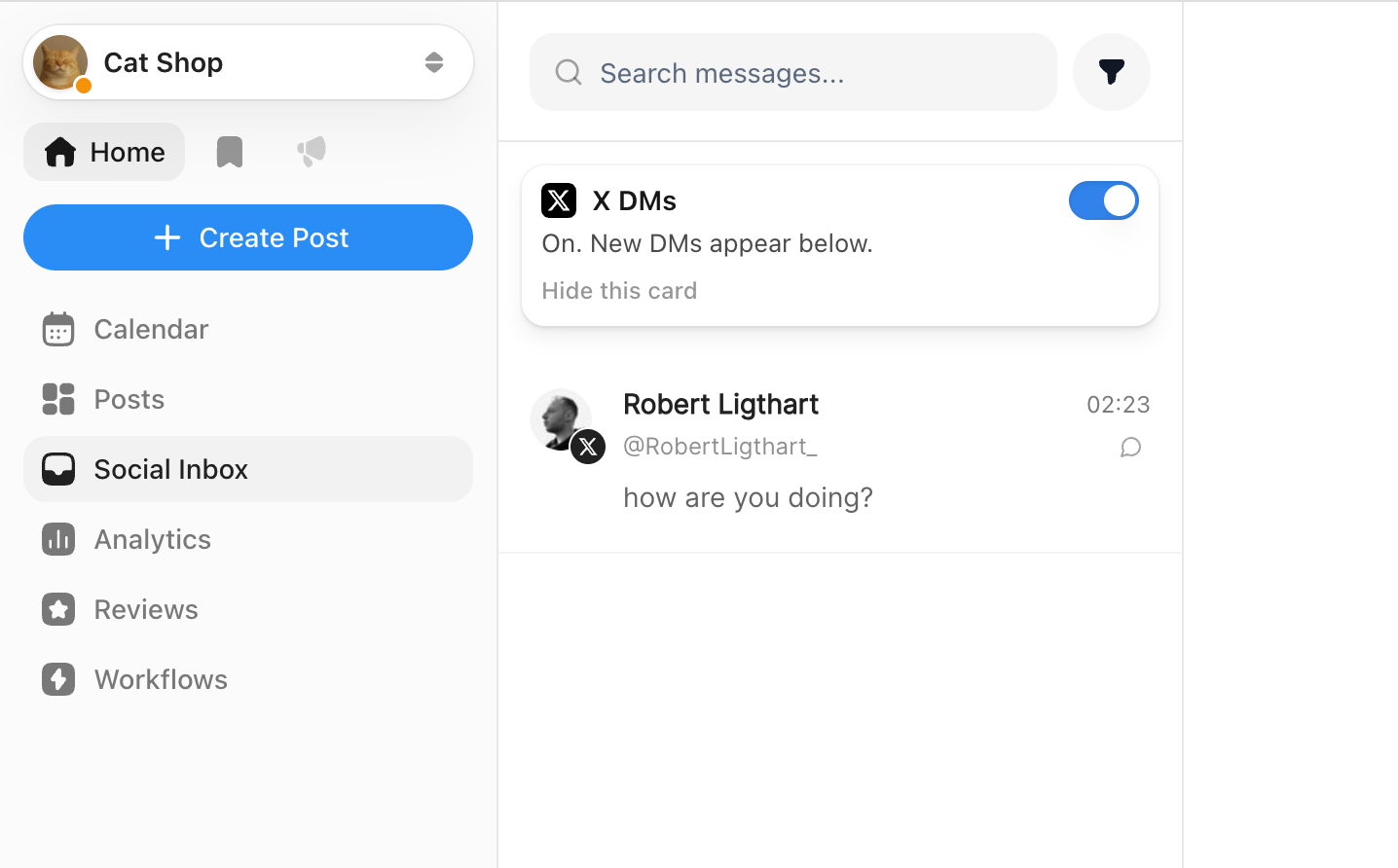
- X DMs in your Social Inbox - X direct messages now land in your Social Inbox alongside Instagram and Facebook, and you can reply without leaving the app. Turn it on from the X DMs card in the Social Inbox settings (a one-time reconnect of your X account may be required). Because X charges for DM API access, this uses credits: 1 credit to receive a message, 2 credits to send a reply, passed through at X's exact rate.
- Credits wallet - your organisation now has a prepaid credits balance under Settings, then Organisation, then Billing, then Credits. Top up any amount from 5 to 500 EUR (1 credit = 0.01 EUR), see every charge in a transparent ledger, export it as CSV, and optionally turn on auto-refill so your balance tops itself up when it runs low.
- Earn free credits - the same Credits tab lists simple ways to earn credits for free, like starring us on GitHub or sharing a video about OmniSocials. More ways are coming.
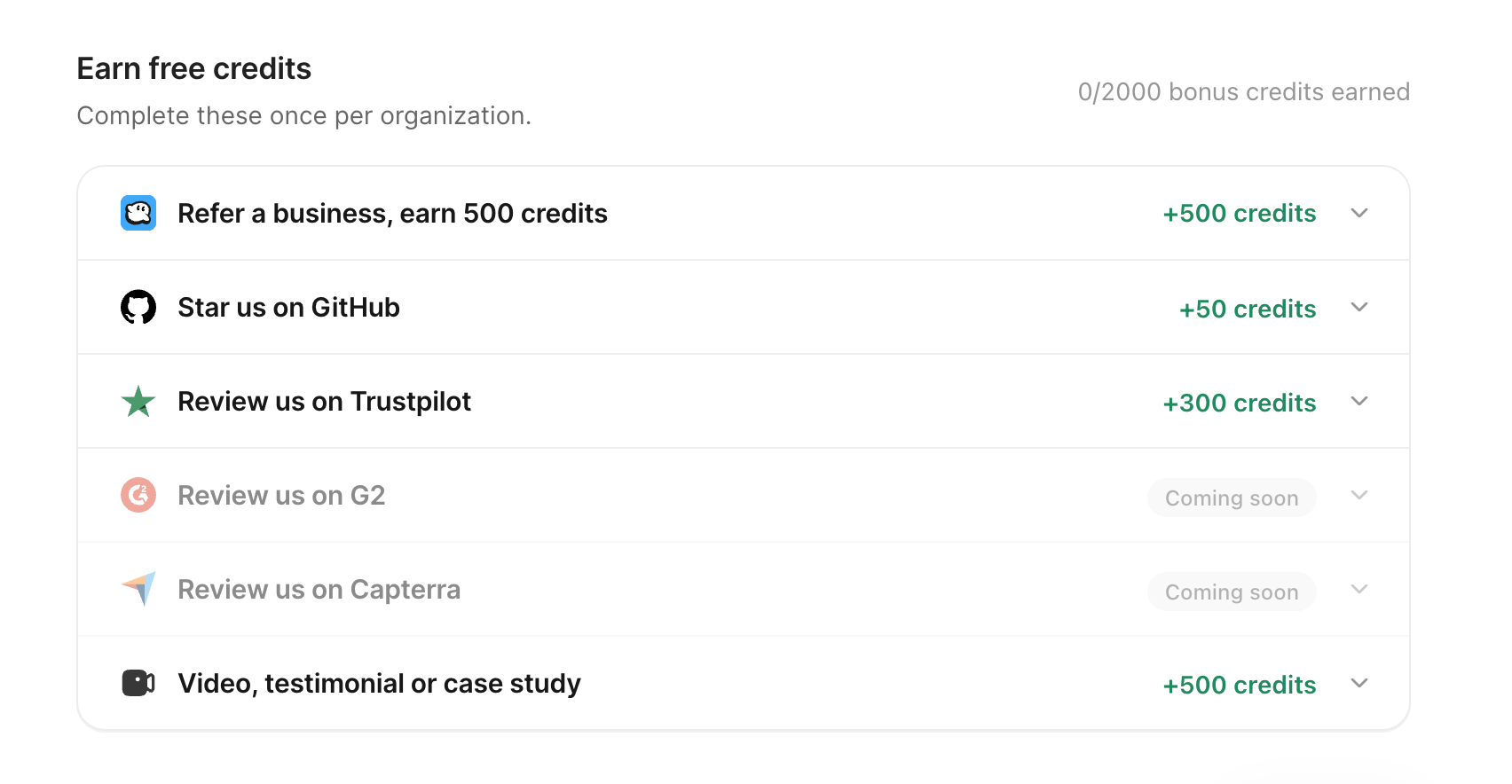
- 200 free credits for X users - every organisation with an X account connected has already received 200 credits from us to get started. Nothing to claim, they are on your balance now.
Changed
- X posts containing a link will use credits from August 14 - X changed its API pricing this spring and now charges 13x more for posts whose text contains a link (0.20 USD instead of 0.015 USD per post). Rather than raising prices for everyone or dropping X like some tools did, we pass this one fee through at X's exact rate with zero markup: 20 credits per link post, threads counted per tweet that contains a link. Everything else on X stays free and unlimited: posts without links, threads without links, analytics, scheduling, media uploads. You will see the exact cost in the editor before you schedule, credits are only used once the post actually publishes (a failed post is never charged), and if a scheduled post ever comes up short we email you ahead of time. Until August 14 nothing is charged, so there is plenty of time to top up or earn credits first.
July 29, 2026
New
- Custom Mastodon & Bluesky servers - connect to any Mastodon instance and any Bluesky host, not just mastodon.social. On Mastodon, enter your server (fosstodon.org, your team's own instance, anything running Mastodon) and OmniSocials sets itself up with that server automatically, and its own character limit is respected. On Bluesky, sign in with any handle, including custom domains like yourbrand.com and accounts on self-hosted or third-party servers. Bring the account you already use, wherever it lives.
July 27, 2026
New
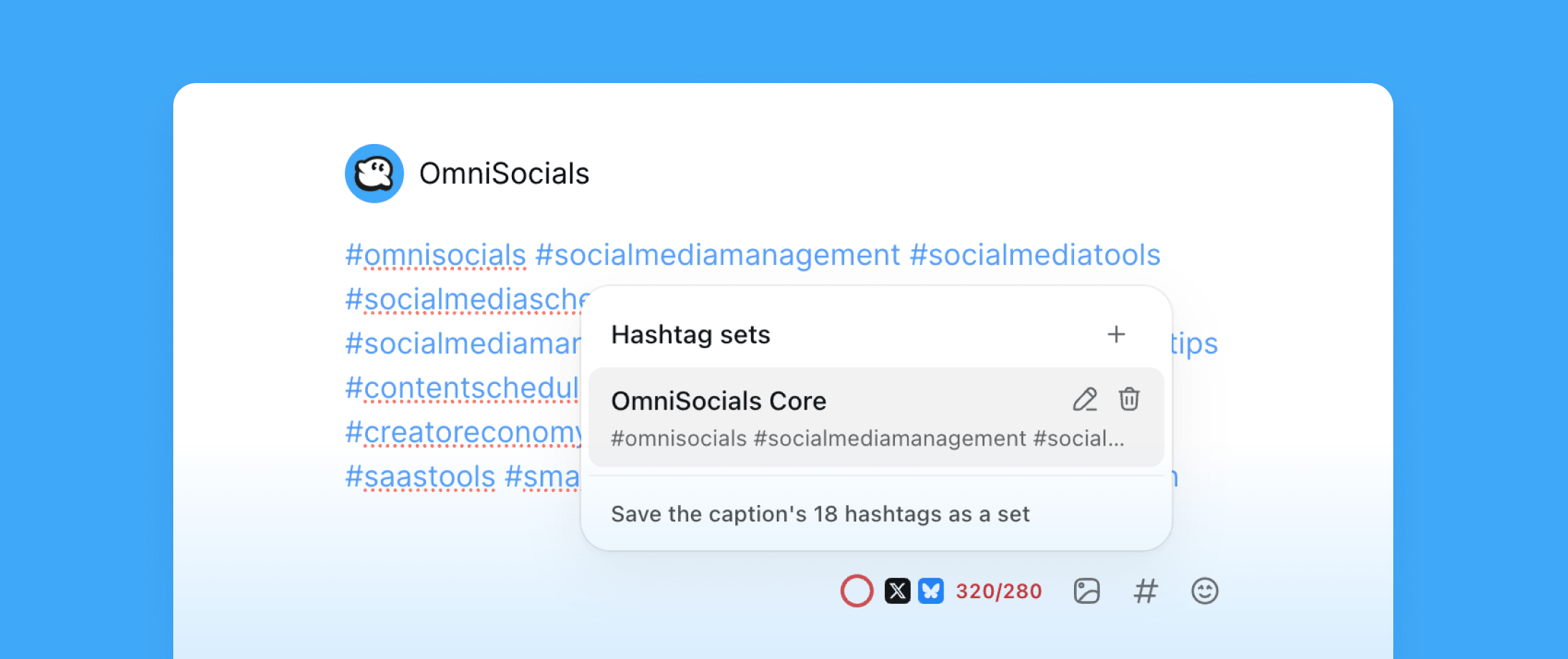
- Hashtag sets - save your go-to hashtags once as a named set, then apply them to any post in one step. Sets live per workspace and work everywhere: pick one from the new toolbar button in the post composer, pass
hashtag_setto the API when creating a post, or let your AI agent use the newlist_hashtag_setsandcreate_hashtag_settools in the MCP server and Agent Skills CLI. Choose whether the tags land in the caption or in the automatic first comment, and OmniSocials skips tags the caption already has and guards Instagram's 30-hashtag limit for you.
- Hashtag sets in all eight SDKs - the Node.js, Python, PHP, Ruby, Go, Java, Rust and .NET SDKs each ship a hashtag sets resource, so the new endpoints work the same in every language.
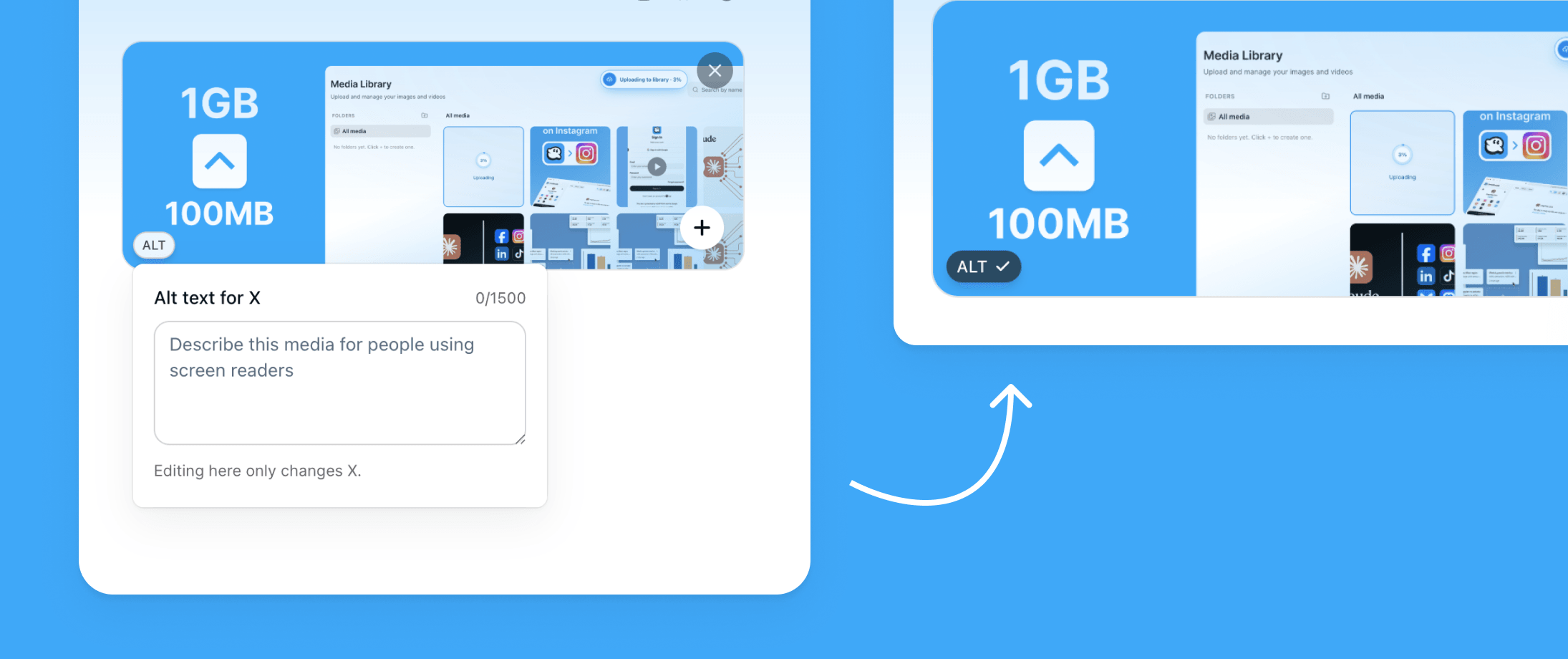
- Alt text on every image - add accessibility descriptions to your media with the new ALT button on each image in the composer. Alt text publishes natively to Mastodon, Bluesky, X and Pinterest, so screen-reader users get a real description of your images. Also available in the API, MCP server and Agent Skills: any media entry can now be
{ "url": "...", "alt": "..." }, including per-tweet and per-toot media in threads.
Fixed
- Bluesky alt text placeholder - images posted to Bluesky no longer carry a generic "Image attached to post" description; they use your alt text, or none, so Bluesky's own alt-text reminders work as intended.
July 21, 2026
Improved
- Refreshed sidebar - a cleaner, more scalable layout that moves your workspaces and connected channels into a single switcher at the top, leaving room for the features we have coming next.
July 19, 2026
New
- Manage the Social Inbox through the API - four new REST endpoints let you build on the inbox from your own code: list conversations, pull full message threads, mark them read, and send replies with optional media attachments. Full details in the API docs.
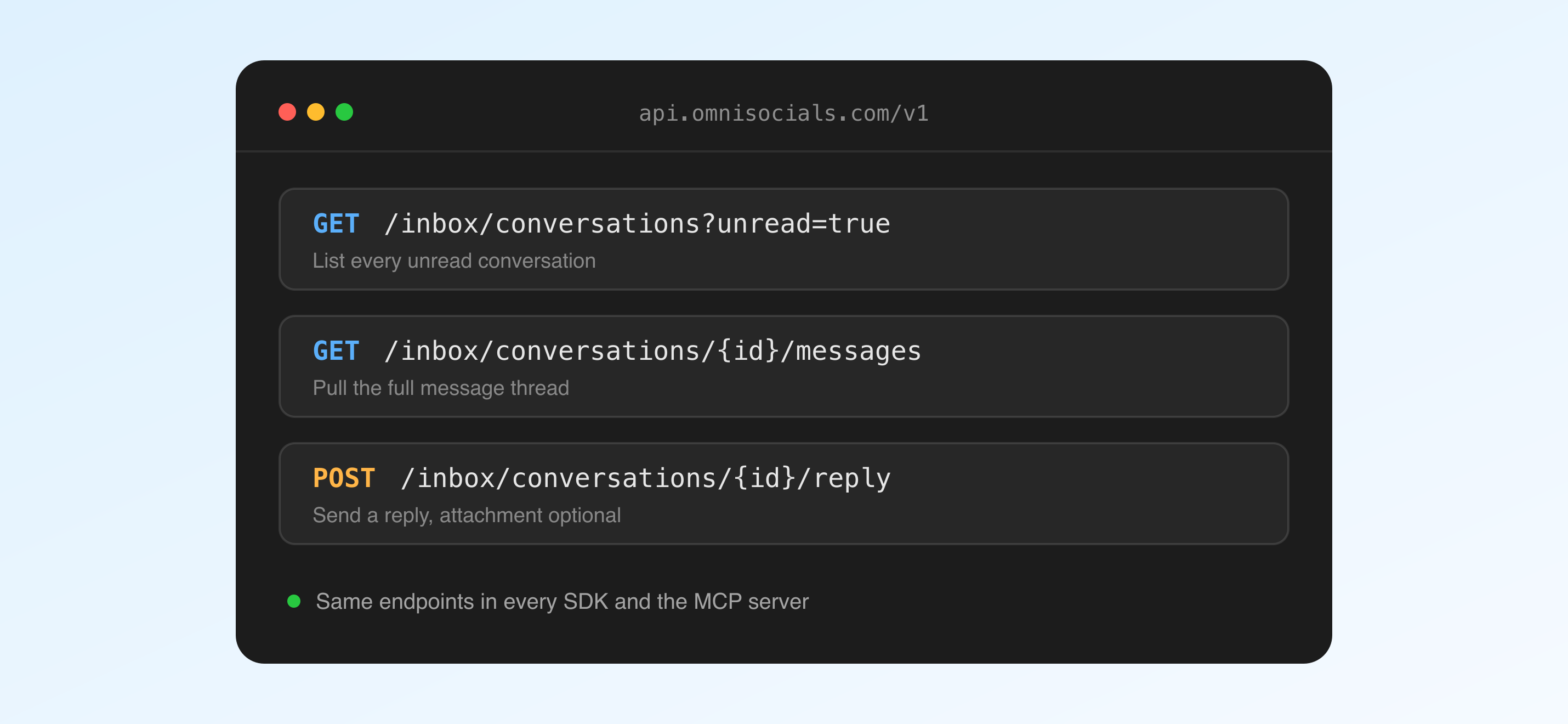
- Inbox support in all eight SDKs - the Node.js, Python, PHP, Ruby, Go, Java, Rust and .NET SDKs each ship a typed inbox resource, so the new endpoints work the same in every language.
- Inbox tools in the MCP server - version 1.14.0 adds Social Inbox tools, so Claude and other AI agents can list conversations, read threads, mark them read and reply for you.
- LinkedIn joins the Social Inbox - comments and mentions on your LinkedIn company pages now land in the inbox alongside Instagram and Facebook, and you can reply without leaving OmniSocials. TikTok is next.
- Scoped API keys - when creating an API key you can now select exactly which scopes it gets, so a reporting integration never needs write access.
- Instagram Reel music and trial Reels - add music to your Reels and publish Instagram trial Reels from OmniSocials.
Improved
- Recent platform posts return permalinks - fetching recent posts through the API or MCP server now includes a direct link to each post.
- TikTok analytics - more reliable post statistics for TikTok.
- Bug reports and feature requests - the report page in the app got a cleaner flow for filing bugs and requesting features.
- SDK links in the app - jump straight to the SDK for your language from inside OmniSocials.
Fixed
- Duplicate LinkedIn replies - a reply to a LinkedIn comment could appear twice in the thread; it no longer does.
- Large images on Bluesky - photos over Bluesky's 2 MB limit are now compressed automatically instead of failing to publish.
- MCP workspace resets - the MCP server no longer loses your selected workspace during bulk runs.
- Instagram transient errors - short-lived Instagram platform errors are handled more gracefully.
- Reel descriptions - fixed an issue with Reel descriptions.
July 15, 2026
New
- We shipped the SDKs today - official OmniSocials client libraries are now available for Node.js, Python, PHP, Ruby, Go, Java, and Rust. Install one, drop in your API key, and start scheduling and publishing posts in a few lines of code.
- Same API, every language - each SDK wraps the full REST API with typed methods for accounts, media, posts, analytics, and webhooks, so you get the same capabilities no matter which stack you build on.
July 13, 2026
New
- Best times to post - when scheduling a post, you now see up to three recommended time slots for the channels you are posting to. One tap sets your time.
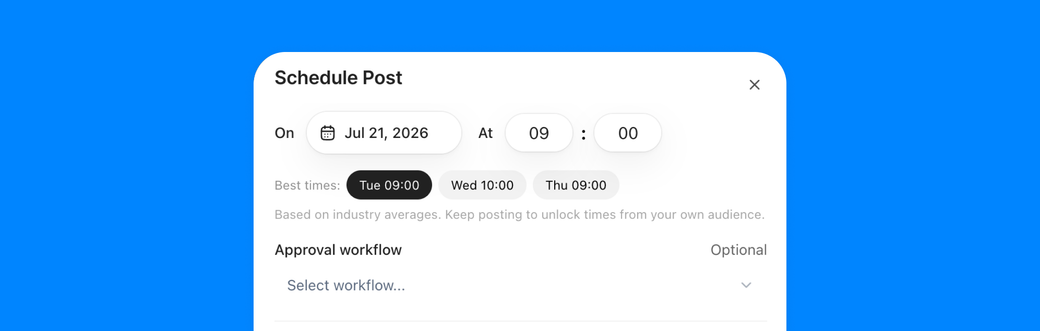
- Best Times to Post heatmap - open Analytics to see your top slots plus a full week grid for every platform, so you can plan ahead at a glance.
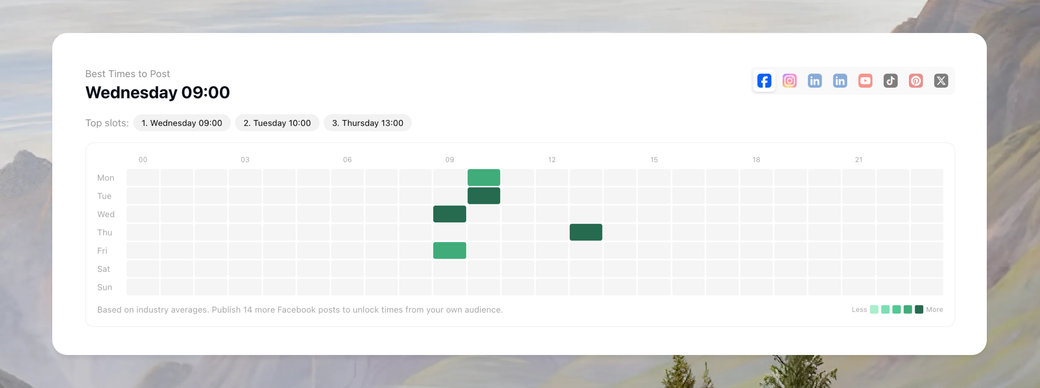
- Based on your own audience - every channel starts with cross-industry benchmarks, then switches to times calculated from when your own followers actually engage after about 15 posts on that channel.
- Available via API and MCP - connected AI assistants can call the new
get_best_timestool to fetch your top slots and schedule posts at the right moment, in your own timezone.
July 8, 2026
New
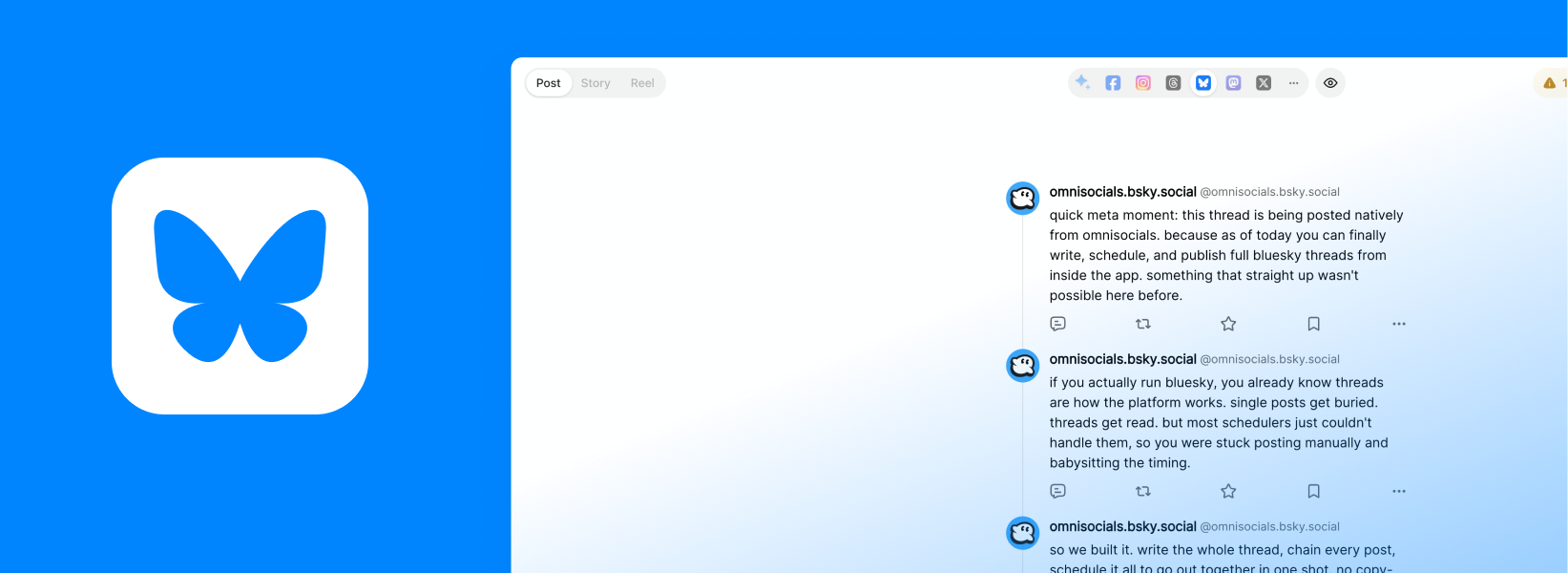
- Bluesky threads - publish a full multi-post thread on Bluesky in one go. Write it as a set of connected posts and we publish the whole chain for you.
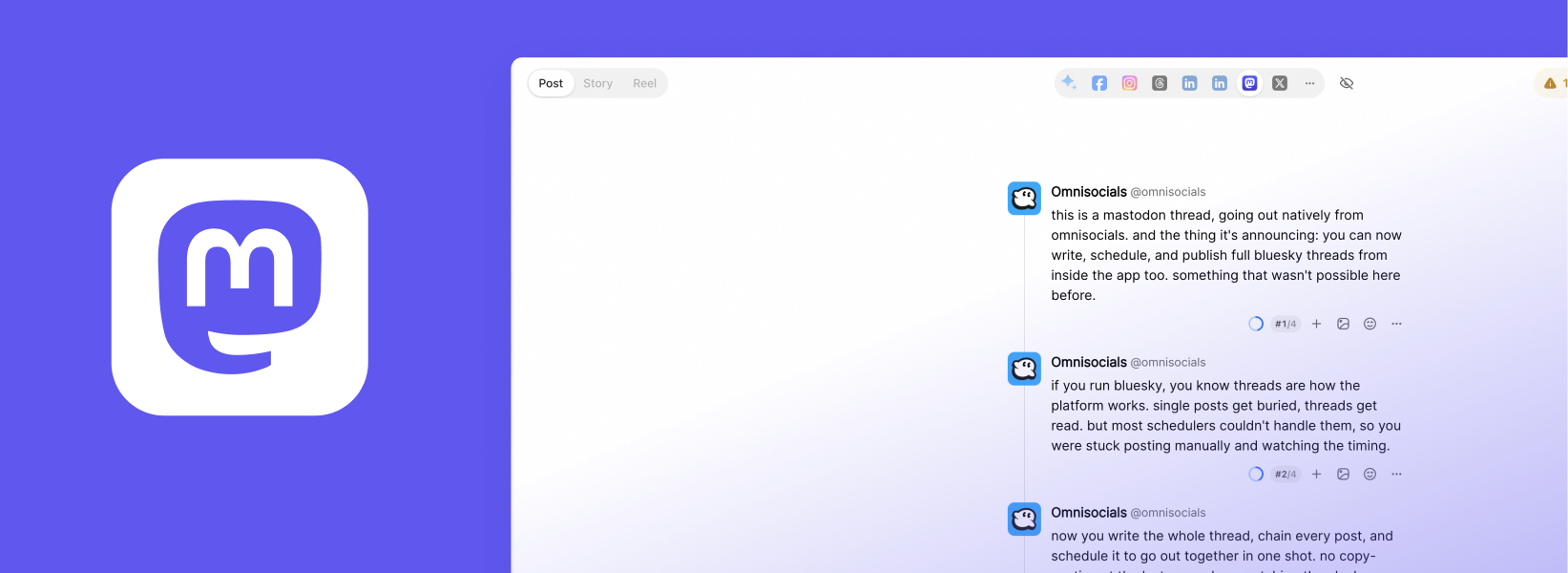
- Mastodon threads - the same for Mastodon. Break a longer story into a connected thread and schedule the entire sequence at once.
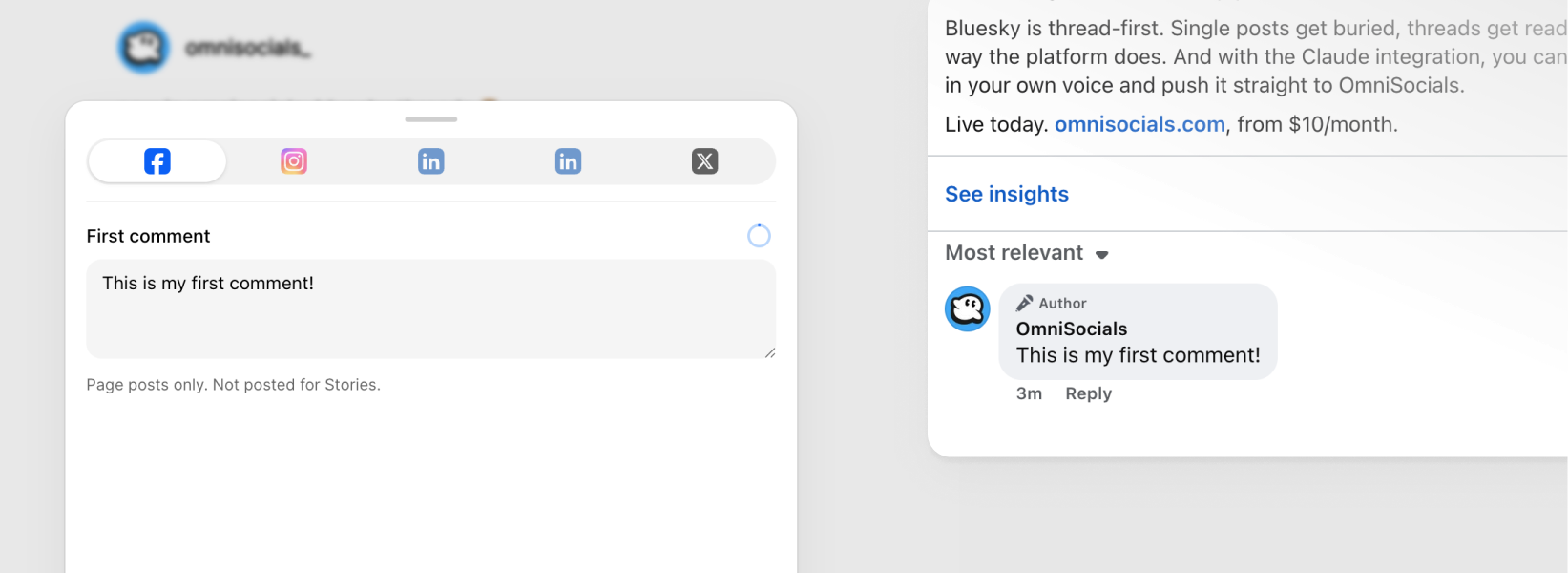
- Automatic first comment - add the first comment automatically on Instagram and TikTok posts. Perfect for hashtags, links, or extra context you want to keep out of the main caption.
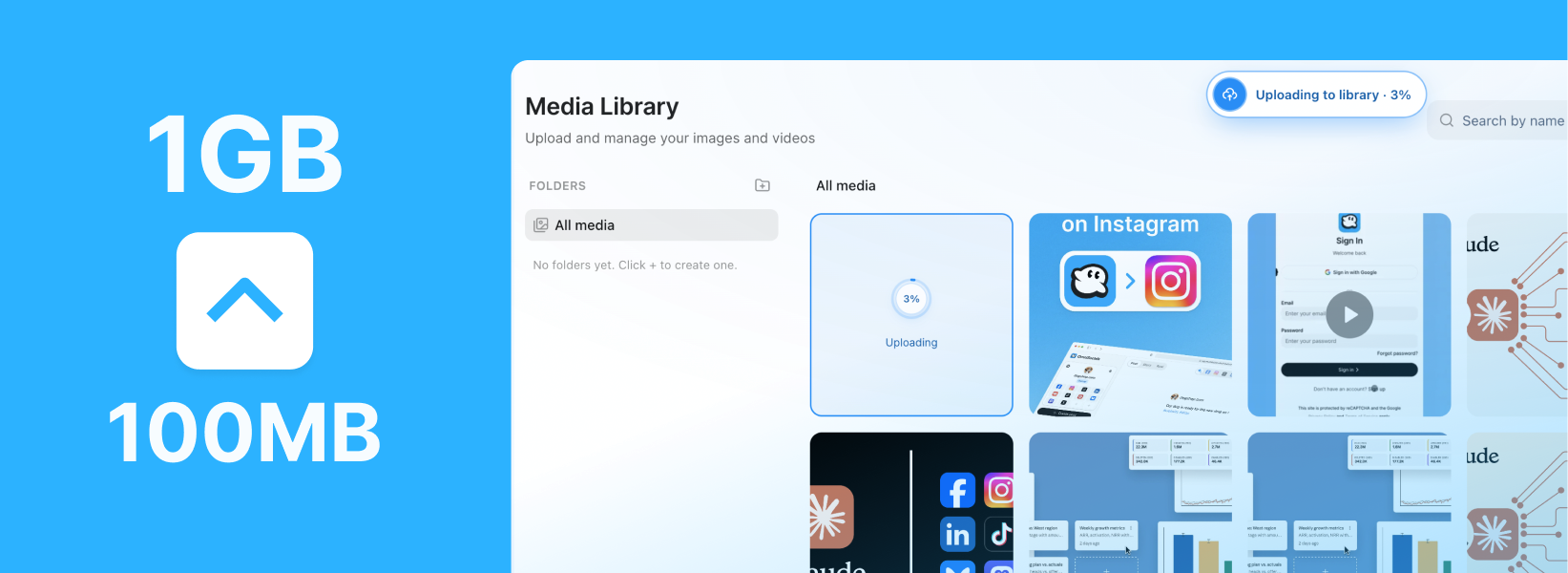
- 1GB video uploads - upload much larger videos, now up to 1GB. Higher quality clips and longer videos go up without the old size limit getting in the way.
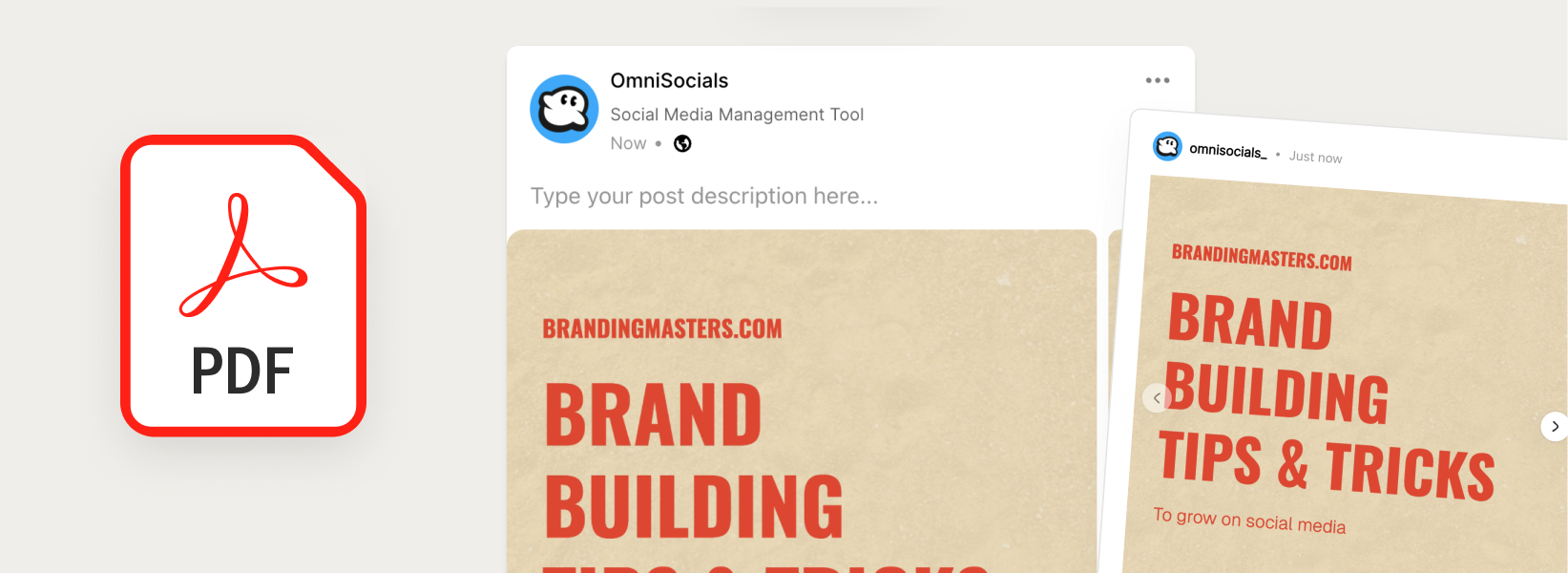
- PDF uploads - share a document as a post. Upload a PDF and turn it into a swipeable post, built with LinkedIn in mind.
June 21, 2026
New
- Connect AI without API keys - log in to Claude and other AI tools with a single click instead of copying keys around
- ChatGPT integration - connect OmniSocials inside ChatGPT and manage your social media there, including image and video attachments
- X (Twitter) threads - compose, schedule, and publish full threads with media on each tweet
- X video uploads - upload and publish videos to X
- X long-form posts - Premium accounts can post beyond the standard character limit
- Instagram tagging & collaborators - tag accounts and add collaborators directly from the composer
- Instagram location tagging - add a location to your Instagram posts
- Pinterest carousel pins - add multiple images to a single pin
- Pinterest alt text - add alt text to pins for accessibility
- TikTok music control - choose whether to turn off the sound TikTok adds automatically
- Google Business post types - publish Events, Offers, and call-to-action updates (now out of beta)
- Share & Collaborate - share a public draft link so clients and teammates can preview a post before it goes live
- Media library - name your media, search it, and organize everything into Finder-style folders
- Drag & drop - drop files onto the composer and calendar to upload, and drag scheduled posts to reschedule
- Link previews - see how a post with a link will look right inside the composer and planner
- Pre-publish checks - the composer flags platform limits like file size, caption length, and aspect ratio before you schedule
- Approval workflow controls - delete approval steps, plus automatic email to each approver when it's their turn
- Get Started checklist - a guided checklist that walks new users through setup
Improved
- Fewer disconnections - proactive token refresh keeps Instagram, Facebook, Threads, Pinterest, and X connected
- Clearer error messages - failures now show a plain-language reason at schedule and posting time instead of a code
- Automatic image conversion - WebP and PNG images are converted automatically for platforms that reject them
- Larger, more flexible uploads - higher upload limits and .MOV files now accepted
- Full calendar - the calendar now shows every scheduled post, not just the most recent batch
Fixed
- Over 90 bug fixes shipped since the last update, including:
- Duplicate posts - resolved cases where a post could publish twice
- Billing accuracy - fixed double billing on upgrades, seat-removal charges, and pricing display issues
- Analytics accuracy - stopped saving empty metrics from failed syncs and fixed the daily stats refresh
- Team member posting - invited members can now post and schedule
- Sign-in loop - fixed a redirect loop on the sign-in page
April 6, 2026
New
- Public API - integrate OmniSocials with your own tools via REST API with full documentation at docs.omnisocials.com
- AI integration - connect OmniSocials to Claude and other AI platforms to manage your social media with AI
- @mention tagging - tag Facebook Pages and LinkedIn organizations directly in your posts
- Content Workflows - automatically repost content from one platform to another (e.g. Instagram to TikTok)
- Notable days calendar - see holidays and notable dates like Black Friday directly in your content calendar
- Drafts - save posts as drafts and come back to them later
- Mobile support - use OmniSocials on your phone
Improved
- New sidebar navigation - redesigned for faster access to your content
- LinkedIn analytics - more accurate impressions and new shares tracking
- Post previews - better X (Twitter) preview with premium character limit support
- Reel & Story publishing - more reliable with better thumbnail handling
- Calendar performance - faster loading
- YouTube tags - easier tag input
Fixed
- Post duplication - "Post Now" no longer creates duplicate posts
- X (Twitter) reliability - automatic token refresh to prevent disconnections
- LinkedIn posting - fixed issue affecting post analytics
- Paste formatting - no more extra line breaks when pasting text
February 20, 2026
New
- Subscription & trial notifications - get notified about upcoming trial expirations and subscription changes
- In-app changelog - view the latest updates directly from the settings modal
Improved
- Instagram integration - updated Instagram connection flow for better reliability
- Reels performance - optimized reel publishing with added support for Instagram Trial Reels
- Facebook & LinkedIn page selectors - redesigned page selection modals for a smoother setup experience
- Stripe billing - enabled Stripe Tax for Dutch VAT and improved date & time handling
Fixed
- Plan upgrade billing - fixed an issue where plan upgrades could trigger immediate double billing
- Analytics tracking - resolved errors affecting some analytics events
February 10, 2026
New
- Live chat support - reach our team directly from inside the app using the chat widget
- Facebook Reels - publish short-form video content directly from OmniSocials
- X (Twitter) integration - connect your X account and schedule tweets from the dashboard
- Instagram Trial Reels - test your reels with non-followers first before sharing with your audience
Improved
- Scrollable page selectors - Facebook and LinkedIn modals now scroll for accounts with many pages
- Reel thumbnails - choose a custom thumbnail from your library or pick a frame from the video
- Post error messages - clearer explanations when something goes wrong, with tips on how to fix it
- Subscription management - smoother plan upgrades and better billing handling
- Media library - refreshed modal with a cleaner layout
- Onboarding - updated select component for a more polished experience
Fixed
- Video uploads - fixed video uploads for regular posts
January 20, 2026
Improved
- Redesigned sidebar - new navigation layout, updated icons, and a new logo
- UI refresh - cleaner, more modern look throughout the app
Fixed
- LinkedIn connections - fixed an issue preventing some users from connecting their LinkedIn accounts
January 6, 2026
Improved
- Analytics accuracy - corrected engagement rate calculations and total post counts
- Live post updates - post status updates automatically, no refresh needed
- TikTok reliability - improved stability for TikTok scheduled posts and account connections
Fixed
- YouTube in posts - fixed a bug where YouTube was sometimes included when not selected
- Mastodon errors - clearer error messages when something goes wrong
- Pinterest links - no longer required when creating posts
January 1, 2026
New
- Retry failed posts - when a post fails on one platform, retry it individually without recreating the whole post
Fixed
- Social inbox - unread message counts now clear correctly when disconnecting an account
- Billing - fixes to subscription management, workspace limits, and plan upgrades
- Delete post modal - resolved display issues
- Posts list - fixed a brief flicker when loading